.svg)
Ask five people what they need from time tracking software and you'll get five different answers: an agency owner needs billable hours turned into invoices, an HR manager requires error-free payroll feeds, and a remote-first team wants honest insight without micro-management.
Managing this diverse mix of remote and hybrid schedules requires reliable tracking. Gallup data shows that six in ten remote-capable workers prefer a hybrid schedule, while one-third want fully remote work and under 10% prefer the office. Because teams are spread out across these different arrangements, keeping work transparent and structured makes tracking essential.
To help you find the right fit, this list organizes the 10 best time tracking software options to match these exact operational needs.
What to Look for in Time Tracking Software
Five things separate a tool your team still uses in six months from one that quietly dies after the pilot.
1. Clear alignment with your specific operational use case
Billing clients, running payroll, understanding productivity, and clocking shift workers are four different jobs. A billing-focused tool won't handle shift attendance, and a time clock won't produce a client invoice. Settle on your primary use case before you start comparing feature lists.
2. The right balance between manual and automatic tracking methods
Some tools ask employees to start and stop a timer, which is accurate when people actually use it but depends heavily on adoption. Others track automatically in the background or through a physical time clock. Manual timers suit project and billing work; automatic capture and clock-in systems suit productivity and attendance.
3. Built-in transparency to protect employee trust
Time tracking only works when employees trust it. Favor tools that are upfront about what they capture and stay focused on time and outcomes rather than covert surveillance. Secret screenshots and keystroke logging damage trust fast, and in a growing number of jurisdictions, they carry real legal exposure too.
4. Deep integrations with existing payroll, accounting, and project tools
Time data only matters where it flows: into payroll for hours-based pay, into accounting for invoicing, or into a project tool for utilization tracking. Check that a platform genuinely connects to the specific systems you already run, not just a generic list of supported apps. If payroll is the priority, our top payroll software list covers that side of the stack in depth.
5. Reliable deskless and mobile support for distributed teams
If you track hourly, field, or frontline staff, the tool needs a real mobile app, offline capability, and often GPS or geofencing for on-site clock-in. Desk-first tools tend to fall short once a workforce spreads across multiple sites.
How We Evaluated Each Software
Every platform here was measured against the same five criteria. The order reflects how each tool performs for its specific use case, not a single "best overall" score. A tool ranked lower on this list may still be the right pick for your particular team.
1. Use-case fit
Whether the tool genuinely solves its job, whether that's billing, productivity, attendance, or free tracking, rather than how many features it has stacked on top.
2. User satisfaction on G2 and Capterra
Verified ratings and review counts as of May 2026. A 4.7 out of 5 from thousands of reviews carries more weight than a 4.9 from a few dozen.
3. Transparency in tracking
Tools built around open, disclosed tracking were favored over tools built around covert monitoring.
4. Integration quality
We checked verified integration with payroll, accounting, and project-management systems rather than taking a vendor's integration list at face value.
5. Ease of use and adoption
Time tracking fails most often on adoption, not on features. We weighted tools that employees actually keep using.
The Shortlist at a Glance
The Top 10 Time Tracking Tools in 2026
The top 10 time tracking tools below are broken down by their core use cases, features, user feedback, and pricing to help you find the right fit for your organization.
1. Toggl Track
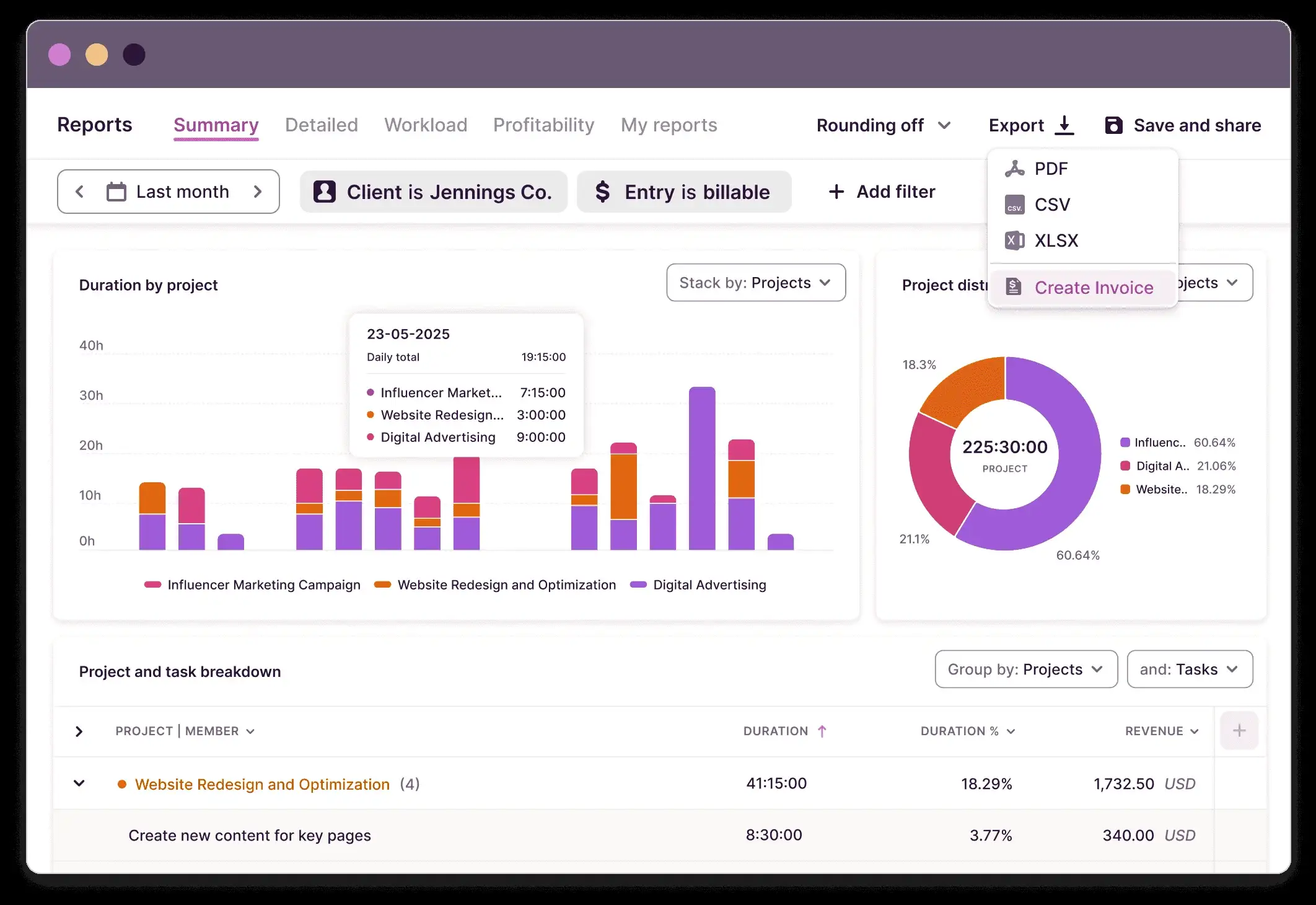
Toggl Track handles project and team time tracking for agencies, consultancies, and any team that bills or reports by the hour. Instead of stacking on monitoring features, it keeps the core experience simple: start a timer, tag it to a project, stop it when the work is done. That restraint is a big part of why teams who have burned out on complicated software keep coming back to it.
Key features
- One-click timers with project and client tagging
- Reporting dashboards that break hours down by project, client, or team member
- Idle-time detection that asks before logging unattended time
- Calendar integration that turns past events into time entries
- Billable-rate tracking by project or team member
- Native apps for desktop, mobile, and browser, plus a Pomodoro-style timer mode
- Integrations with more than 100 tools, including project management and accounting software
Pros and cons
Pros: "It is very intuitive and easy to track time for different projects, the app works great and the features to be able to add different costs levels are cool." – Capterra review
- The free plan covers up to five users, giving small teams a real way to test the tool before paying.
- Reporting is detailed enough for client-facing invoices without extra setup.
- Employees can see exactly what's being tracked, since there's no hidden layer running in the background.
Cons: "Honestly, not much to complain about, but I wish the mobile app was a bit good because I sometimes I feel like it takes a second to sync or find the project I am looking for. Also, a built-in calendar view would be nice instead of jumping between tools." – G2 review
- Attendance and shift-scheduling features are thin, so hourly or shift-based teams will outgrow it fast.
- Payroll integration exists but sits lighter than dedicated attendance tools like QuickBooks Time.
- Some reporting and admin controls are gated to paid tiers.
Pricing
- Free plan for up to 3 users
- Starter: $9/user/month
- Premium: $16/user/month (billed annually)
- Custom Enterprise options for larger organizations
2. Clockify
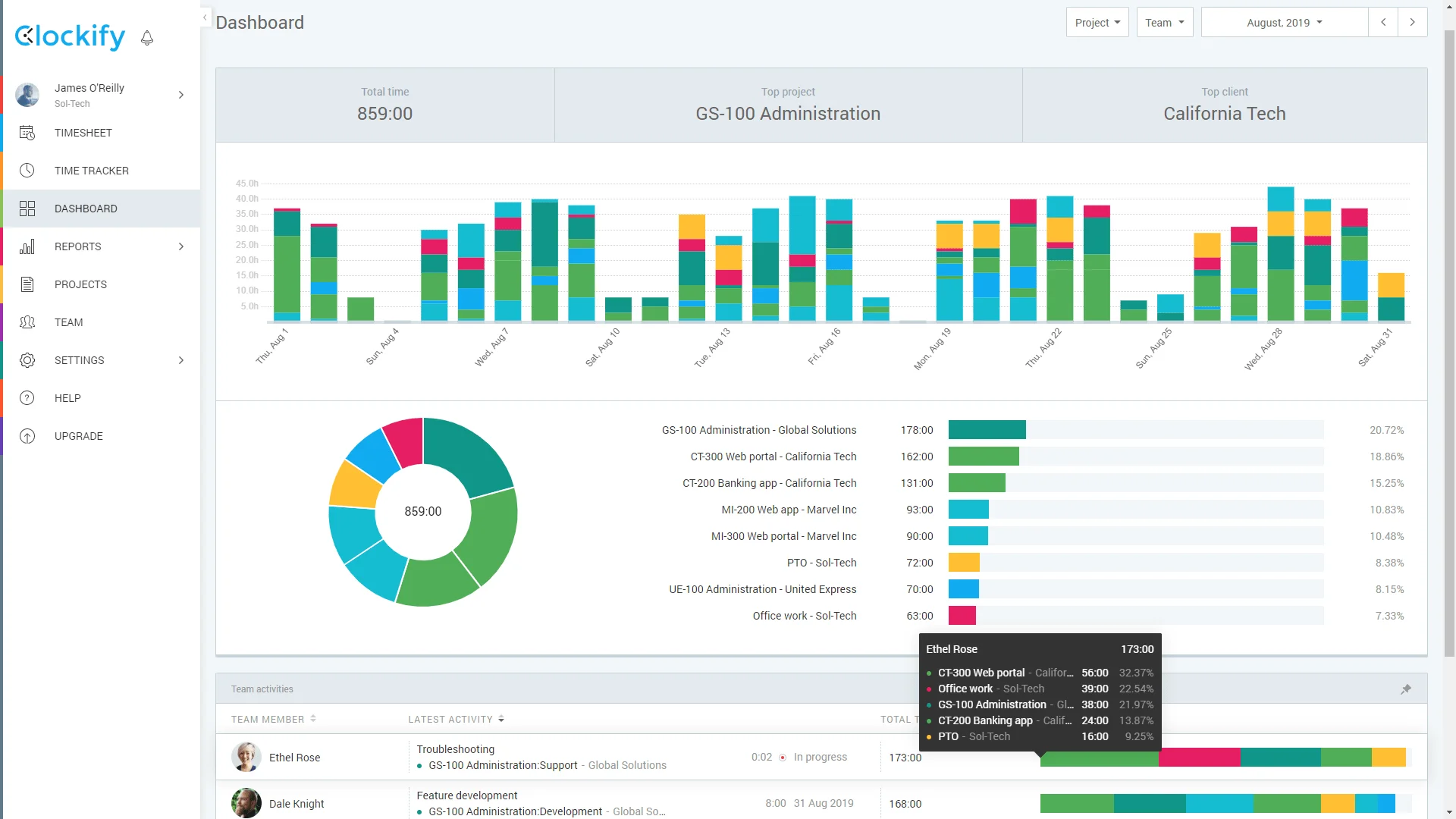
Clockify covers free time tracking for teams that don't want a subscription decision attached to the tool itself. Unlimited users and unlimited projects sit on the free plan, which is rare in this category and makes Clockify the default pick for budget-conscious teams, freelancers, and nonprofits.
Key features
- Unlimited users and projects on the free plan
- Timesheet and calendar views for weekly and monthly reporting
- Time clock kiosk mode for shared devices
- Project budgeting and billable-rate tracking on paid tiers
- Approval workflows for submitted timesheets
- Integrations with more than 80 tools, including project management and invoicing platforms
Pros and cons
Pros: "Clockify makes it easy to track work across multiple clients, projects, tasks, and team members. We use it every day to keep our billables accurate and it allows project managers to ensure work is staying within budget." – G2 review
- No user cap on the free tier removes the usual budget conversation for small teams.
- Reporting covers enough ground for client billing without an upgrade.
- Simple enough that most teams need little onboarding.
Cons: "The UI looks a bit old school, and it lacks some of the modern time tracking functionalities of other platforms like Toggl." – Capterra review
- Scheduling, GPS tracking, and screenshots all require a paid plan.
- Support on the free tier is limited next to paid competitors.
- The interface trails newer tools like Toggl Track on polish.
Pricing
Clockify offers a free tier for up to 5 users, plus five paid tiers billed annually or monthly:
- Basic ($3.99/$4.99) for administration
- Standard ($5.49/$6.99) for billing and invoicing
- Pro ($7.99/$9.99) for productivity and scheduling
- Enterprise ($11.99/$14.99) for security and SSO
- Productivity Suite ($12.99/$15.99) bundling Enterprise features with management and communication tools
3. QuickBooks Time
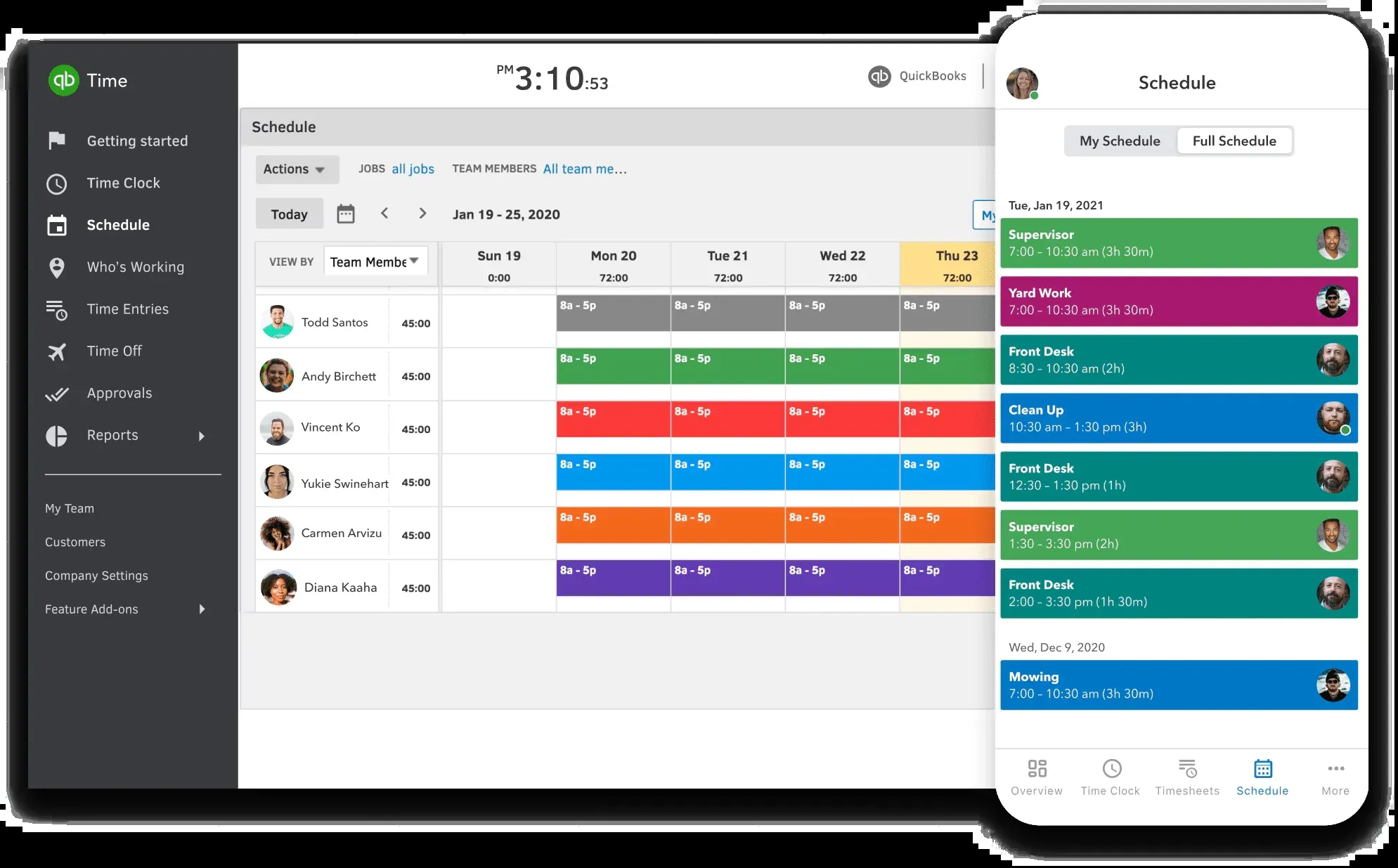
QuickBooks Time, formerly TSheets, handles time and attendance for hourly teams whose hours need to land directly in payroll. A GPS-enabled time clock, scheduling, and manager approvals feed straight into QuickBooks payroll, which is the main reason small businesses already on QuickBooks pick it over a standalone tracker.
Key features
- GPS time clock with geofencing for job sites
- Employee scheduling with shift swapping and reminders
- Manager approvals before hours reach payroll
- Overtime alerts and break-compliance tracking
- Mobile app with offline clock-in support
- Direct sync with QuickBooks Online Payroll
Pros and cons
Pros: "I like that we have the ability to specify projects and specific tasks." – Capterra review
- Payroll sync removes the manual step of moving hours from a tracker into a payroll run.
- GPS and geofencing suit field crews and multi-site hourly teams well.
- Scheduling and time tracking live in one app instead of two.
Cons: "What I dislike about QB is that sometimes it glitches and you have to reset everything and start over." – G2 review
- Most of the value depends on already running QuickBooks; standalone use is a weaker case.
- Pricing sits on top of a QuickBooks subscription, so the total cost runs higher than it first looks.
- Occasional sync glitches mean managers should double-check hours before approving payroll.
Pricing
- 30-day free trial; 50% off for the first three months on all plans
- Simple Start: $38/month ($19/mo promotional), 1 user
- Essentials: $75/month ($37.50/mo promotional), 3 users
- Plus: $115/month ($57.50/mo promotional), 5 users
- Advanced: $275/month ($137.50/mo promotional), 25 users
4. Hubstaff
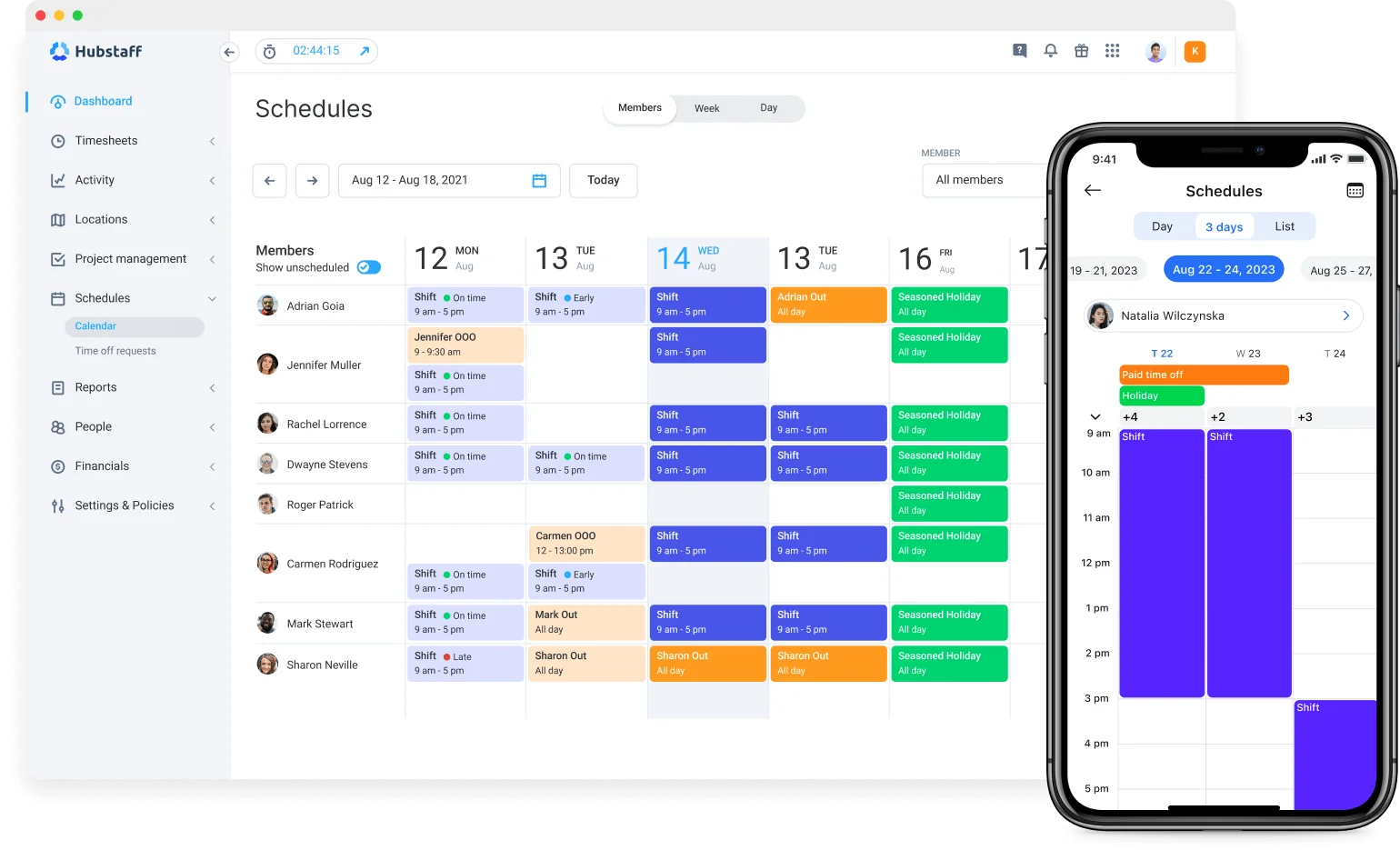
Hubstaff covers productivity tracking for distributed and remote teams that want real activity data without hiding it from employees. Screenshots, activity levels, and GPS location are visible to the employee being tracked, not just to a manager, which matters in a category with a genuine trust problem.
Key features
- Activity levels based on keyboard and mouse input
- Optional, disclosed screenshots on a set interval
- GPS and geofencing for field and delivery teams
- Automated timesheets and payroll-ready reports
- Productivity and idle-time analytics by team member or project
- Online invoicing tied to tracked hours
Pros and cons
Pros: "The monitoring features and analytics are really helpful for us since our company is made up entirely of remote workers. I also really like the smart notifications, along with the real-time shift and schedule tracking." – G2 review
- Employees see the same activity data managers see, setting it apart from covert monitoring tools.
- GPS features suit field service and delivery teams that need location context, not just hours.
- Reporting is detailed enough to support both payroll and client billing in one place.
Cons: "Sometimes app feels a bit slow, and user can be more user-friendly. Few features take time to understand, and pricing can feel high for small teams." – Capterra review
- The activity and screenshot features only build trust when rolled out with a clear policy. Deployed quietly, they read as surveillance.
- Pricing runs higher than lighter tools like Toggl Track or Clockify for small teams.
- The feature set can feel heavier than needed for a team that just wants basic hours logged.
Pricing
Hubstaff offers four pricing tiers with a 2-seat minimum and a 14-day free trial:
- Starter ($7 per seat per month) for basic time tracking and limited reports
- Grow ($9 per seat per month) for growing teams with task management and one integration
- Team ($12 per seat per month) as the popular option featuring payroll, unlimited screenshots, and integrations
- Enterprise ($25 per seat per month billed annually) for advanced security, compliance, custom setups, and dedicated support
5. Harvest
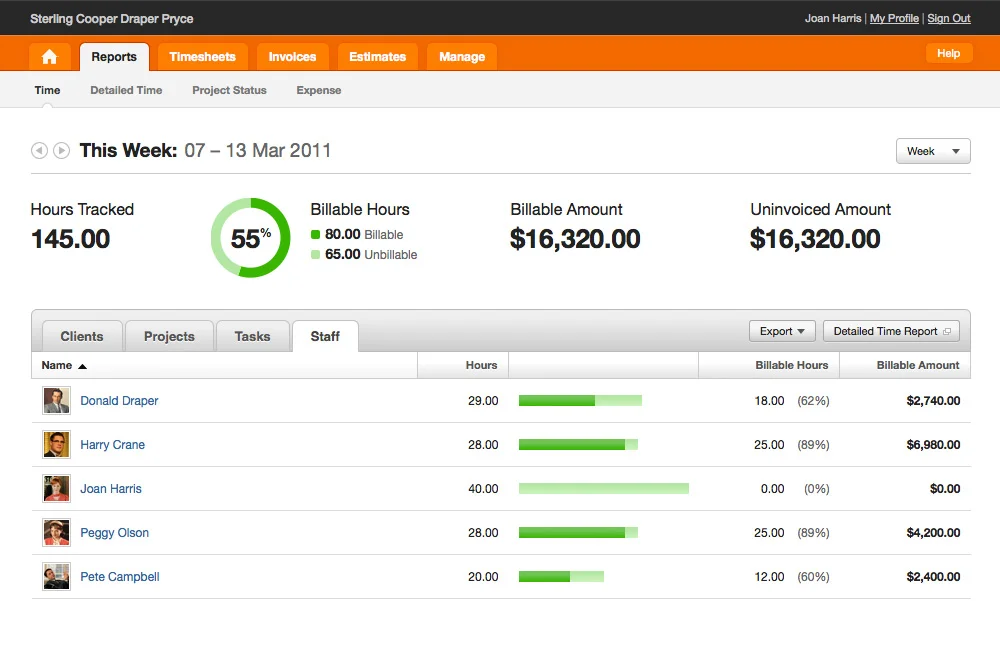
Harvest turns tracked hours into client invoices, making it the strongest fit on this list for agencies and professional-services firms that bill by the hour. Time entries, expenses, and project budgets flow into an invoice without a separate export to accounting software first.
Key features
- Timers and manual entry tied to projects and clients
- Expense tracking attached to the same project record
- One-click invoice generation from tracked hours and expenses
- Project budgets with over-budget alerts
- Visual reports on team and project utilization
- Integrations with Asana, Trello, QuickBooks, and Xero
Pros and cons
Pros: "I've been using the harvest integration with Notion, and I really like how quick and easy it is to track tasks and have a lot of detail on them." – Capterra review
- Invoicing built directly on tracked hours removes a manual billing step most competitors leave to a separate tool.
- Project-management integrations mean time gets logged where the work already happens.
- Budget alerts catch scope creep before a project runs over.
Cons: "The only problem I had with Harvest was the fact that it didn't remember the previous weeks project/task but that was fixed in the last update." – G2 review
- Attendance and shift-based scheduling aren't part of the product; hourly or shift teams need a different tool.
- Productivity or activity monitoring features are minimal by design.
- Per-seat pricing adds up for larger teams compared with flat-rate competitors.
Pricing
- Free plan for 1 user and 2 projects
- 30-day free trial on paid tiers
- Teams: $9/seat/month — unlimited seats and integrations
- Enterprise: $14/seat/month — advanced reporting and SSO
- Enterprise Plus: custom pricing with dedicated support
6. Connecteam
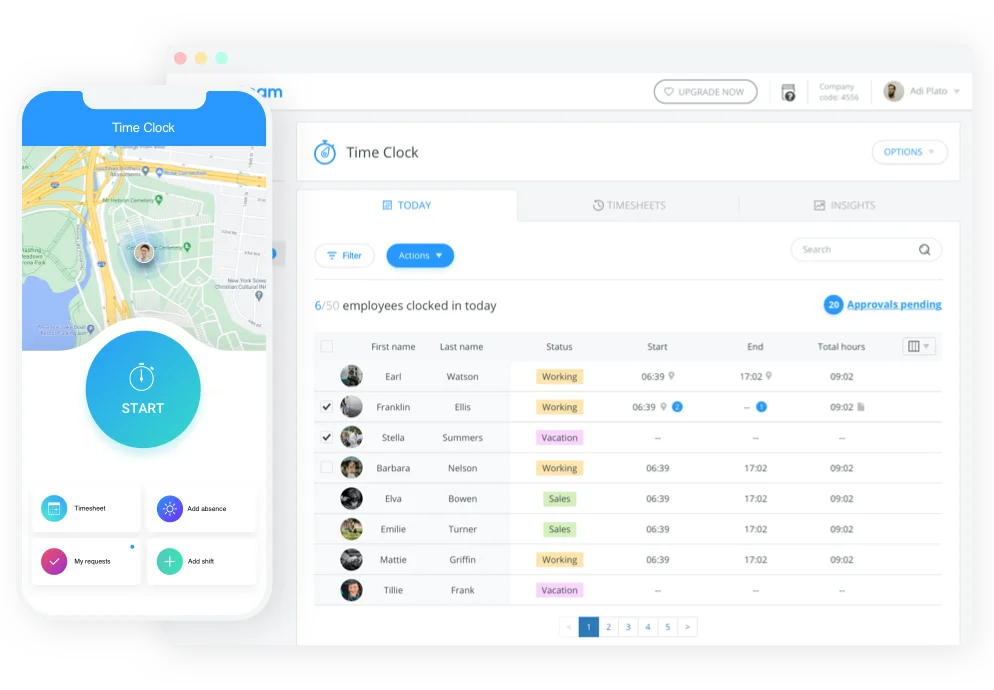
Connecteam covers deskless and frontline operations, bundling a mobile time clock with scheduling, tasks, and internal communication for teams that don't sit at a desk. Retail, field services, and hospitality businesses use it as one app instead of stitching together three separate tools.
Key features
- Mobile time clock with GPS location stamps
- Shift scheduling with swap requests and reminders
- Task management and internal chat in the same app
- Digital forms and checklists for on-site work
- Payroll-ready timesheet exports
- Employee recognition and training modules
Pros and cons
Pros: "Connecteam is user friendly and very easy to learn. It was nice to have the walk-through when you start using it but it's almost unncessary, it's that easy!" – G2 review
- The free tier for up to 10 users lowers the barrier for a small operations team to try it out.
- Time tracking, scheduling, and communication in one app cut down on app-switching for field staff.
- Published pricing tiers make budgeting easier than the custom-quote competitors on this list.
Cons: "Updates takes a while, can get laggy sometimes, could be less expensive per user. Time sheets can change sometime." – Capterra review
- Time tracking is one module inside a broader operations app, not a standalone deep tool.
- Desk-based knowledge teams likely won't use most of the platform's breadth.
- Some users report occasional lag and slower rollouts during busy periods.
Pricing
- Free tier for up to 10 users
- 14-day free trial on paid plans
- Operations Hub Basic: from $29/month (first 30 users)
- Advanced: from $49/month
- Expert: from $99/month
- Custom Enterprise pricing available
7. Homebase
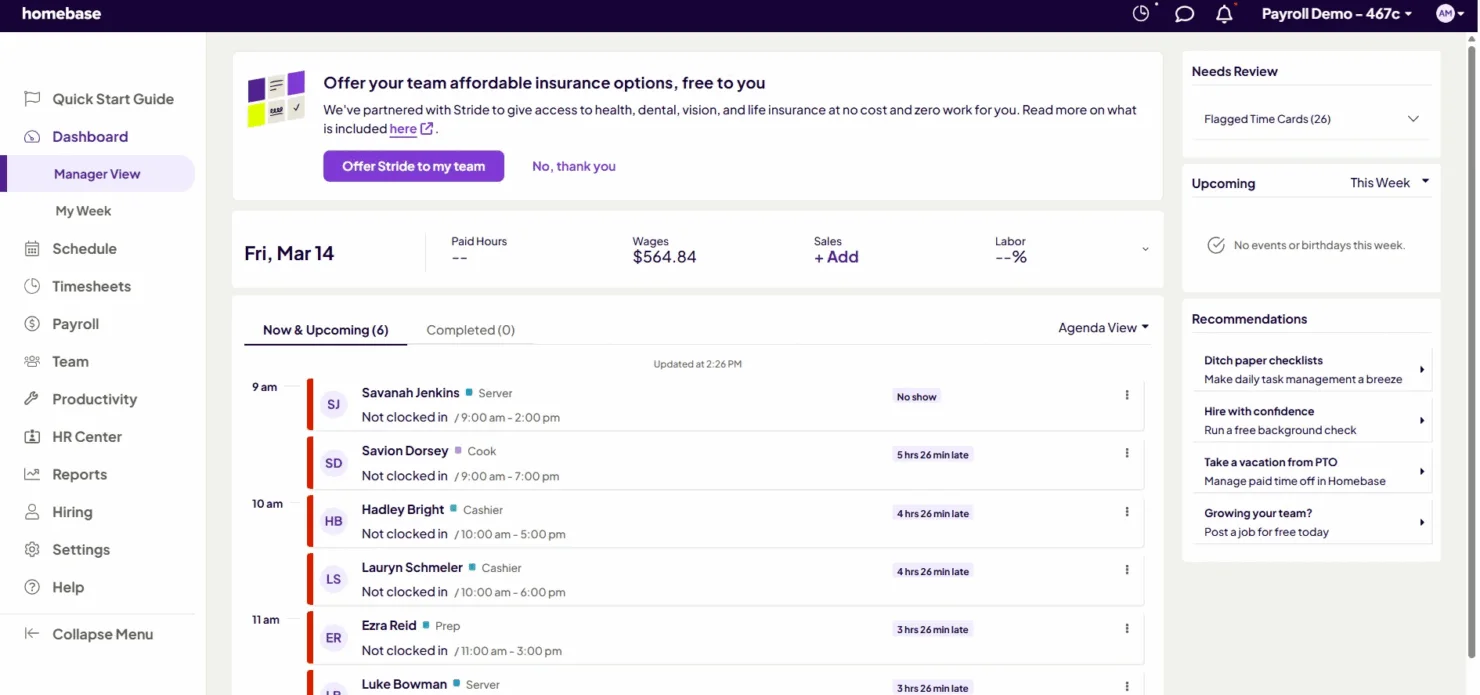
Homebase serves hourly and shift-based teams, most often in retail, restaurants, and local service businesses. Time clock, scheduling, and hiring all live in one dashboard, and the core plan is free for a single location, which is unusual in this category.
Key features
- Time clock with photo verification at punch-in
- Shift scheduling with labor-cost forecasting
- Team messaging built into the scheduling view
- Hiring and onboarding tools for hourly staff
- Payroll processing available in supported states
- Overtime and break-compliance alerts
Pros and cons
Pros: "It's very simple and user-friendly. It does payroll, time tracking and scheduling all in one place. Previously, we had to use two separate apps to get all these features." – Capterra review
- The free plan for a single location gives small hourly businesses a real starting point.
- Payroll, scheduling, and time tracking in one dashboard removes the need for separate tools.
- Photo verification at punch-in helps prevent buddy punching without added hardware.
Cons: "The only thing I don't like is that I can't access all information from the app on my phone, I need my computer to access complete information, and I am always doing things on the go." – G2 review
- Multi-location businesses need a paid plan; the free tier caps out at one location.
- Payroll processing is only available in a limited set of states.
- Some account and reporting details are easier to reach from a desktop than the mobile app.
Pricing
- Free Basic plan for one location, up to 10 employees
- Essentials: $30/location/month (billed annually)
- Plus: $70/location/month (billed annually)
- All-in-One: $120/location/month (billed annually), unlimited employees
8. Time Doctor
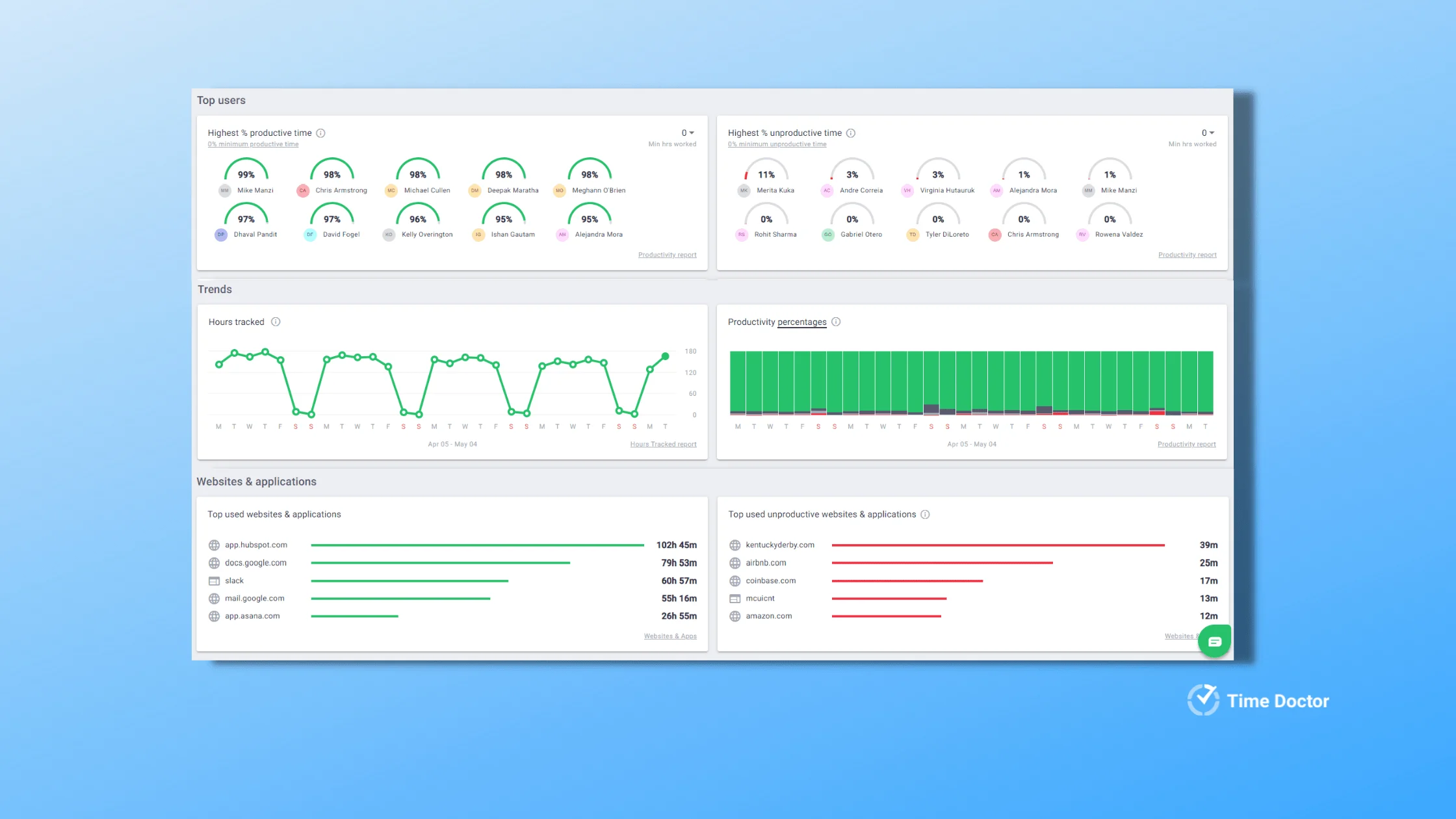
Time Doctor covers detailed productivity analytics for teams that want granular activity data, not just a running clock. Time use, app and website activity, and productivity scores roll up into reports, and the vendor is explicit that the tool works best when employees know what's being tracked and why.
Key features
- Time and activity tracking by app, website, and task
- Productivity scoring based on active work time
- Optional screenshots with configurable frequency
- Payroll-ready reports and client billing exports
- Distraction alerts that flag off-task time in real time
- Attendance and punctuality tracking
Pros and cons
Pros: "The agent is lightweight on system resources. The web dashboard is reasonably organized and finding a specific user's data is straightforward." – Capterra review
- The desktop agent runs light, which matters for teams worried about tracking software slowing down their machines.
- Reporting is granular enough to support both productivity review and client billing.
- Dashboard organization makes it easy to pull one employee's data without digging.
Cons: "How it cannot be integrated with the remote app as we use that for payroll, it has limited apps that it supports." – G2 review
- Integration support is narrower than category leaders, so check your specific payroll or HR tool before buying.
- The level of detail only builds trust when the team knows upfront what's collected and why.
- The product is primarily a tracking tool, not a broader remote workforce management suite.
Pricing
- Basic: $6.67–$8/user/month
- Standard: $11.67–$14/user/month
- Premium: $16.70–$20/user/month
- Custom Enterprise options available
- Rates vary by annual vs. monthly billing
9. Everhour
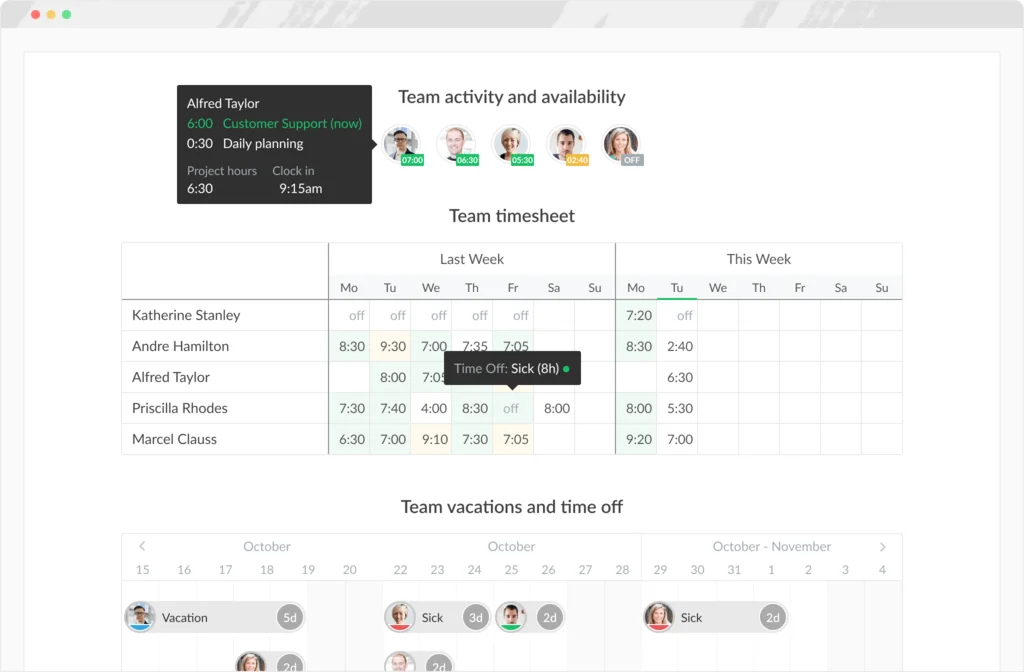
Everhour tracks time from inside the project tools teams already use, embedding directly into Asana, Trello, and ClickUp instead of asking employees to open a separate app. That makes it a strong fit for teams whose real complaint about time tracking is one more tab to manage, not a missing feature.
Key features
- Native embedding inside Asana, Trello, ClickUp, and Basecamp
- Project budgets with real-time spend tracking
- Client-facing time and expense reports
- Timesheet approvals for team leads
- Billable-rate management by project or client
- Browser extension for quick timer starts anywhere
Pros and cons
Pros: "The user interface is clear and easy to use with the ClickUp integration." – G2 review
- Tracking time inside the project tool itself cuts down on the adoption friction standalone trackers run into.
- Budget tracking updates in real time as hours get logged.
- Client reports are clean enough to send directly without reformatting.
Cons: "There is no tags that can organise which type of tasks are recorded." – Capterra review
- The value drops sharply if your team isn't already using a supported project tool.
- Standalone use, without a connected PM tool, is a much weaker case.
- Task-level tagging and organization sit lighter than dedicated project management tools built for that job specifically.
Pricing
- Free plan for up to 5 users, limited features
- Team plan: $8.50/seat/month (billed annually, 5-seat minimum), full access to features, integrations, and budgeting tools
10. Timely
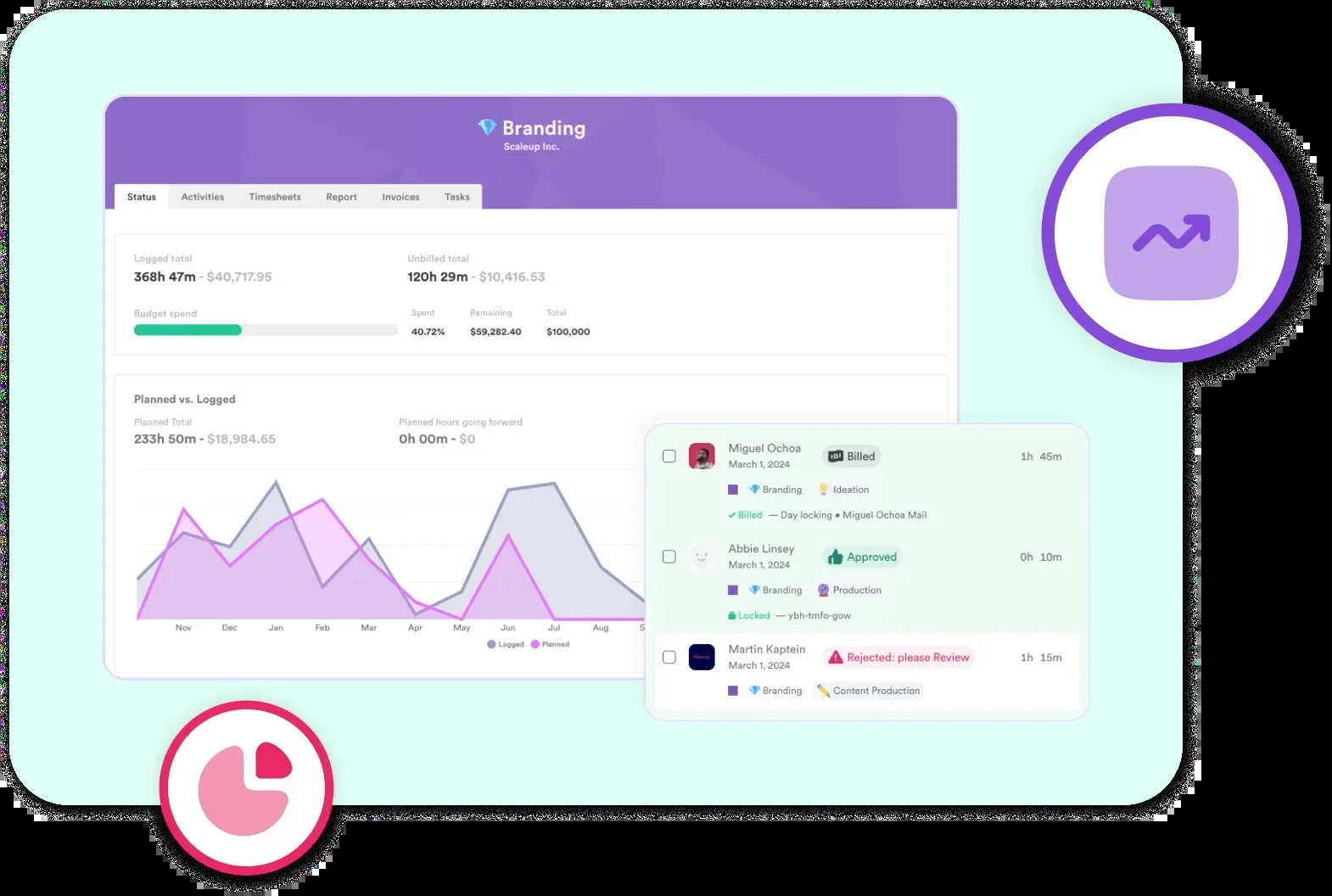
Timely automates time tracking in the background instead of relying on employees to remember a timer. Activity across apps and documents gets captured quietly, then drafted into a timesheet the employee reviews and confirms, which is the clearest AI-driven approach on this list.
Key features
- Automatic activity capture across apps and documents
- AI-drafted timesheets employees review before submitting
- Memory feature that reconstructs a day's work retroactively
- Project and client hour tracking with reporting
- Calendar integration for meeting-based time entries
- Team dashboards for utilization and capacity planning
Pros and cons
Pros: "It's easy to use and the clients really like it. Lots of functions are automated." – Capterra review
- Automatic capture means employees spend less time managing timers during the day.
- Draft timesheets still need employee review before submission, keeping a human check in the loop.
- Reporting is clean enough for client-facing use without much extra formatting.
Cons: "The Google Calendar integration can occasionally go wrong. For a small number of people, it's picking up appointments and reminders set by their colleagues, not them." – G2 review
- Background capture needs a clear policy in place, since it raises its own transparency questions if employees aren't told what's collected.
- Pricing sits higher than most tools on this list.
- Calendar sync errors mean AI-drafted entries still need a human review pass before submission.
Pricing
- 14-day free trial
- Build: $26/staff/month — basic scheduling, 100 SMS
- Elevate: $39/staff/month — client documents, 200 SMS
- Innovate: $47/staff/month — advanced sales targets, automated rebooking, 350 SMS
Choosing the Right Time Tracking Software
Match your situation to one of these five profiles and you'll narrow the list fast.
1. Client billing by the hour
Harvest and Toggl Track are the strongest starting points. Harvest wins if invoicing is the priority; Toggl Track wins if you want a lighter, timer-first experience with strong reporting.
2. Payroll for hourly and shift teams
If you're already on QuickBooks, QuickBooks Time is the obvious pick since it feeds payroll directly. If you're running a single retail or restaurant location, Homebase's free tier covers time clock, scheduling, and light payroll in one place.
3. Productivity insight without covert monitoring
Hubstaff and Time Doctor both offer detailed activity data, and both work only when rolled out with a clear, disclosed policy. Tell your team what's tracked and why before either tool goes live.
4. Free and low-cost options for small teams
Clockify's free plan has no user cap, which makes it the easiest starting point for a team watching every dollar. Toggl Track's free tier works well too, up to five users.
5. Deskless and field operations
Connecteam bundles time tracking with scheduling, tasks, and messaging for retail, field service, and hospitality teams. Hubstaff is the stronger pick if GPS-based productivity data matters more than the broader operations toolkit.
Final Word
Most of the tools above offer a free plan or a no-cost trial, so there is little reason to commit on paper alone. Pick the two that match your use case from the profiles above, run each with a small pilot group for a week, and see which one people actually keep using once the novelty wears off. If payroll integration is your deciding factor, cross-check your shortlist against our top payroll software list before signing anything.
Ultimately, no single option fits every team: Harvest and Toggl Track lead for billing, QuickBooks Time and Homebase lead for payroll-linked attendance, Hubstaff and Time Doctor lead for transparent productivity insight, and Clockify leads for teams that need the basics at no cost. Choose based on the job the software needs to do, rather than the name with the biggest marketing budget.
.png)